
System audio on Windows and macOS
Translate computer audio in real time with live subtitles
If you want to translate computer audio in real time, the hard part is not the translation. It is getting the sound in. Phone apps listen through a microphone, browser extensions only hear one tab, and meeting tools only work inside their own meeting. LiveTrans captures the system audio of your Windows PC or Mac directly, so anything that plays through your speakers or headphones can become live, translated subtitles.
Calls, videos, lectures, webinars, podcasts: one setup covers them all.
Free: 1 hour a month. Pro: $4.99/month for 30 hours. Windows and Apple Silicon Macs on macOS 13.0+.
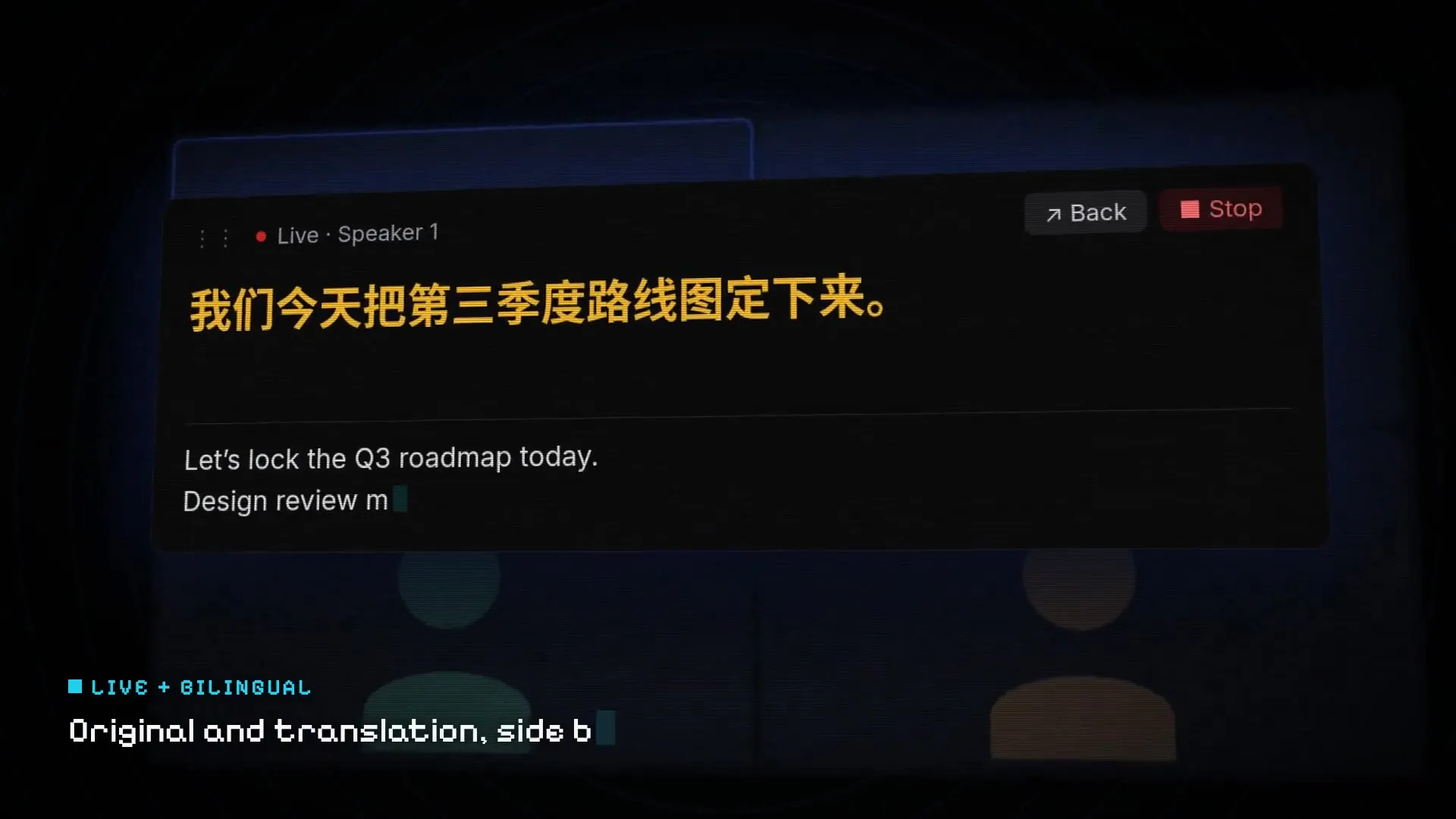
Fictional demo content; no customer, meeting, or account data.
Set it up in three steps
01
Select System Audio
In LiveTrans, choose System Audio. Add the microphone too (System Audio + Microphone) if you want your own voice included.
02
Grant permission on macOS
macOS asks for screen-recording permission the first time, because ScreenCaptureKit is the system feature that supplies app audio. Windows needs no extra driver.
03
Choose languages and start
Set the spoken language (or automatic detection) and the target, press start, and play anything.
Get the installer from the LiveTrans download page.
One tool for every app that makes sound
Because LiveTrans works at the system level, it is not tied to a platform.
- Desktop meeting apps such as Zoom, Teams and Google Meet in a browser.
- Video sites and players, including streams without captions.
- Online courses and recorded lectures.
- Voice messages and podcasts played on the computer.
How it compares with Live Captions in Windows 11
Windows 11 Live Captions also reads system audio, and on some newer PCs Microsoft has added translation into English for certain languages. It is worth trying if your device supports it. LiveTrans adds macOS support, a wider choice of target languages including Chinese, Japanese and Korean, a movable floating subtitle window, and (on Pro) saved history with text export.
Get the routing right: the step most guides leave out
System audio means what the operating system is sending to your current output device. If you switch from speakers to Bluetooth headphones mid-session, or an app sends its sound somewhere unusual, check that text is still appearing. On a Mac, if nothing shows up, the screen-recording permission is the first thing to check in System Settings.
Also keep the volume of the source app up. Muting a video inside the player usually mutes what LiveTrans hears too.
Good to know before you rely on it
- Audio is sent over the network to cloud services for transcription and translation. LiveTrans is not an offline tool. Details are in the privacy policy.
- Automated text can contain errors. Check names, numbers and decisions before you act on them.
- Follow applicable law, consent requirements and your organisation’s policy when capturing audio.
Further reading
- Microsoft Support: Use live captions to better understand audio Windows 11’s built-in captions and translation.
- Apple Developer: ScreenCaptureKit The macOS framework that provides app audio capture.
- Live translation for Zoom meetings
- Live translate YouTube videos
Frequently asked questions
Do I need a virtual audio cable?
No. LiveTrans captures system audio directly on Windows and macOS without a separate virtual audio driver.
Can it translate my microphone and the computer audio at the same time?
Yes. Choose System Audio + Microphone to mix both into one session.
Why does macOS ask for screen-recording permission?
macOS provides app audio through ScreenCaptureKit, which sits under the screen-recording permission. LiveTrans uses it for audio.
Is the audio processed locally?
No. Selected audio is sent to cloud services for transcription and translation. See the privacy policy for details.
Which computers are supported?
Windows, and Apple Silicon Macs on a supported macOS version. The download page lists current requirements.
Is there a free plan?
Yes. Free includes 1 hour each month. Pro is $4.99 per month for 30 hours.
Try it with the free hour
Every account gets 1 hour a month. Upgrade to Pro only if it earns its place.