
Zoom on Windows and macOS
Live translation for Zoom meetings, without asking the host
Live translation for Zoom meetings usually depends on the host: a paid add-on, interpreters assigned before the call, or a translation bot someone has to invite. LiveTrans takes a different route. It runs on your own Windows PC or Mac, listens to the Zoom audio your computer is already playing, and shows the words, translated, in a floating subtitle window you control.
Nobody else in the meeting sees it, and nothing joins the participant list. If you can hear the call, you can read it in your language.
Free: 1 hour a month. Pro: $4.99/month for 30 hours. Windows and Apple Silicon Macs on macOS 13.0+.
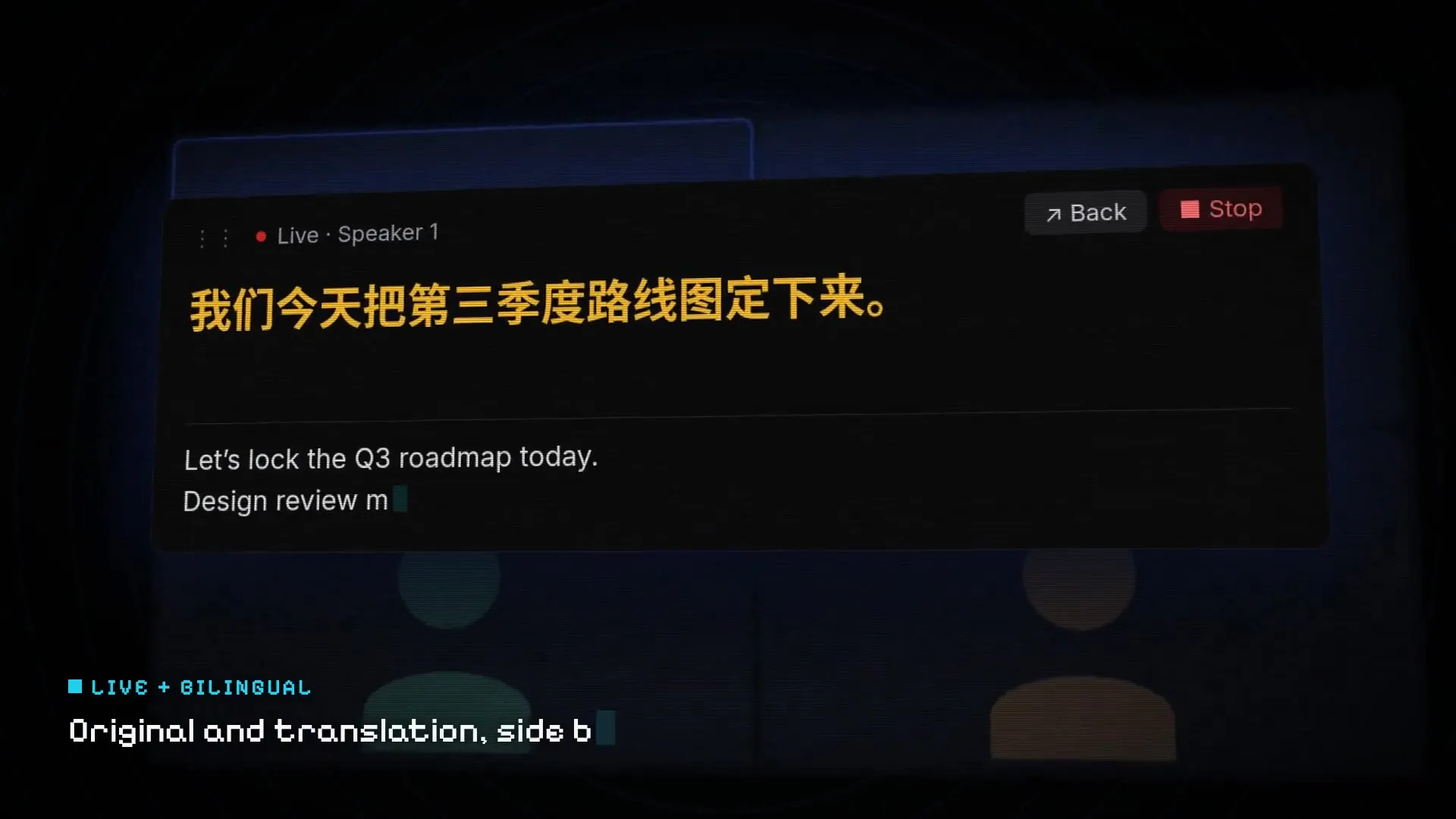
Fictional demo content; no customer, meeting, or account data.
Set it up in three steps
01
Open LiveTrans before the call
Choose System Audio as the source. On a Mac, allow the screen-recording permission macOS asks for, since that is how the system-audio stream is provided.
02
Pick the languages
Set the spoken language, or leave it on automatic detection, and choose the language you want to read.
03
Join Zoom and start
Press start, then drag the floating subtitle window somewhere it will not cover the Zoom toolbar or shared screen.
Get the installer from the LiveTrans download page.
What Zoom already offers, and where it stops
Zoom has three translation paths of its own. Translated captions and the newer Voice Translator need an eligible paid account plus an add-on, and someone has to switch them on. Language Interpretation needs the host to schedule interpreters in advance; it cannot be added to an instant meeting. All three are good options when you control the account.
The gap is the meeting you were invited to: a client call, a supplier review, an open webinar. You cannot change those settings, and asking a host to buy an add-on for one attendee rarely happens.
How LiveTrans fits into a Zoom call
LiveTrans is a separate desktop app, not a Zoom integration. It captures the audio your computer plays, sends it to cloud speech and translation services, and returns text to the app within the session.
- Floating subtitles stay on top of the Zoom window, so you can watch slides and read at the same time.
- Show the original line next to the translation when you want to check a name or a number.
- Use System Audio + Microphone if you want your own side of the conversation in the text as well.
- Pro keeps meeting history and text export, which helps when you need to follow up on what was agreed.
The part most Zoom translation guides skip: your setup check
Most pages explain which button to press. Few tell you what goes wrong. In practice, the common problem is audio routing: Zoom playing through a headset the app is not listening to, or a muted output device. Do a two-minute check with any video before an important call, confirm text appears, and keep LiveTrans running for the whole meeting rather than starting it mid-sentence.
And treat the text as a reading aid. Automatic transcription and translation make mistakes with names, accents, and cross-talk. For anything binding, confirm the detail in writing afterwards.
Good to know before you rely on it
- Audio is sent over the network to cloud services for transcription and translation. LiveTrans is not an offline tool. Details are in the privacy policy.
- Automated text can contain errors. Check names, numbers and decisions before you act on them.
- Follow applicable law, consent requirements and your organisation’s policy when capturing audio.
Further reading
- Zoom: Using the Voice Translator for meetings Requirements for Zoom’s own voice translation add-on.
- Zoom: Using Language Interpretation How host-scheduled human interpretation works.
- Live meeting translation subtitles
- Translate any computer audio
Frequently asked questions
Does the Zoom host need to enable anything?
No. LiveTrans runs on your computer and uses the audio you already hear. You still need to follow the meeting’s rules and any consent requirements.
Will other participants see LiveTrans in the meeting?
No. It does not join the call or appear as a participant. The subtitles are only on your screen.
Does it work with the Zoom web client as well as the desktop app?
Yes, as long as the meeting audio plays through your computer. LiveTrans captures system audio, not a specific Zoom window.
Is the audio processed on my computer?
No. Selected audio is streamed to cloud services for transcription and translation. Read the privacy policy before using it with sensitive conversations.
How much does it cost?
Free includes 1 hour of live transcription per month. Pro is $4.99 per month for 30 hours, plus meeting history and text export.
Which languages can I translate between?
Chinese, English, Japanese, Korean and more are available as spoken languages. The language menu in the app shows the current source and target options.
Try it with the free hour
Every account gets 1 hour a month. Upgrade to Pro only if it earns its place.